How to Download Company Documents on BRS eCitizen V2 in Kenya
Learn how to download company documents on BRS eCitizen V2, including business registration certificates, company incorporation certificates, and other company records through Application History.
The Business Registration Service (BRS) in Kenya provides an online platform where users can access company registration documents, certificates, and other official records. Through BRS eCitizen V2, individuals and business owners can view the progress of applications, retrieve approved documents, and download or print available records.
If you have completed a business registration or submitted an application through the BRS online portal, you can access the relevant documents through the Application History section. This guide explains how to download company documents on BRS Version 2, including business registration certificates, company incorporation certificates, and other available records. For more information about business registration procedures and related services, explore our business registration guides and articles.
What Is BRS eCitizen V2?
BRS eCitizen V2 is the online platform used to access services provided by Kenya’s Business Registration Service. It allows users to manage applications and access records associated with services offered through the Companies Registry.
The platform helps applicants retrieve available documents without having to search through their original application submissions. Depending on the service and application status, the available records may include a business name registration certificate, company incorporation certificate, and other company registration documents.
To get started, visit the official BRS Version 2 portal:
You will need access to the relevant eCitizen account used to submit or manage the application.
How to Download Company Documents on BRS eCitizen V2
Follow these six steps to access and download your company documents through the BRS online portal. You can also refer to our detailed step-by-step guide on downloading certificates and other records on BRS in Kenya for additional guidance.
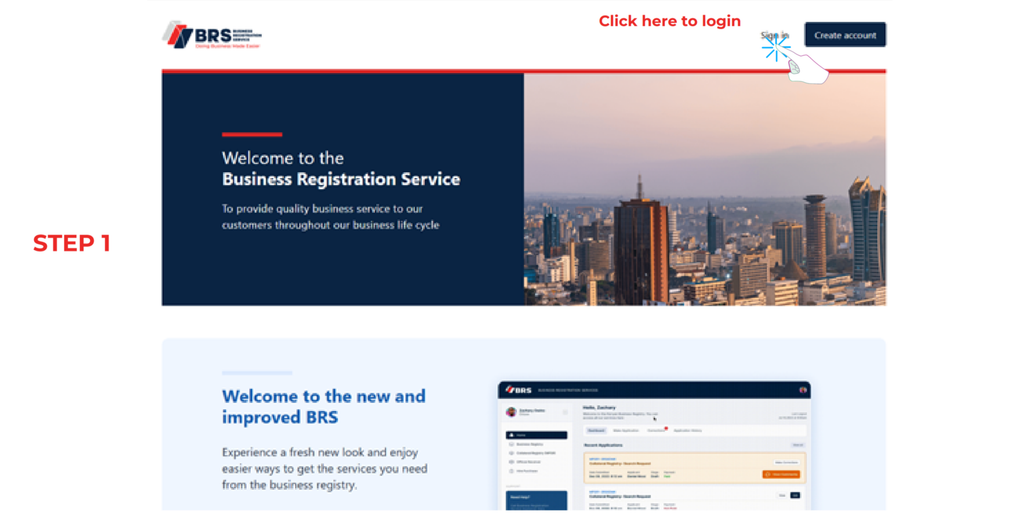
Step 1: Log In to Your eCitizen Account
Visit https://brsv2.ecitizen.go.ke/ and log in using your eCitizen credentials.
After logging in, locate the Accounts Switcher. This feature allows you to select the account through which you want to access the available services.
Choose the appropriate account associated with your application before proceeding.
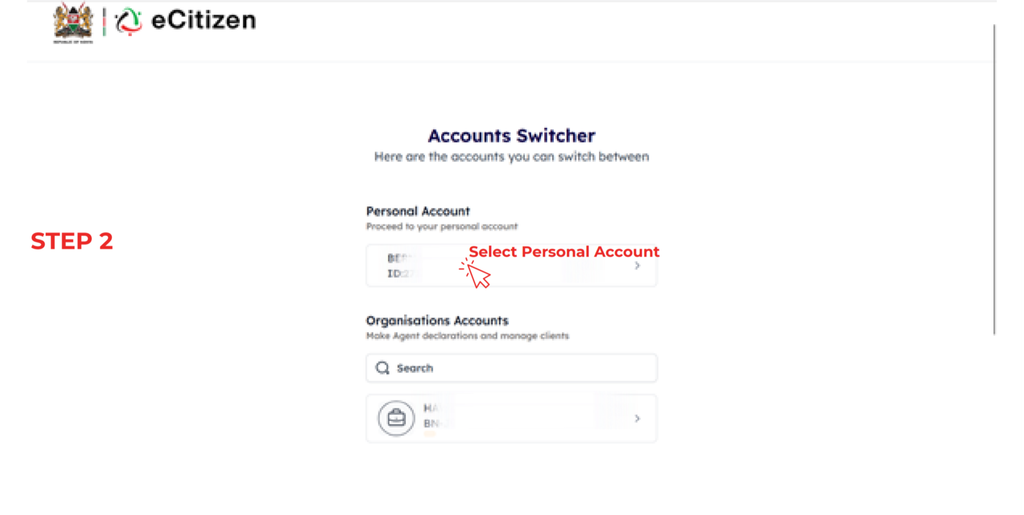
Step 2: Select Personal Account
In the Accounts Switcher, select Personal Account.
This is the account selection specified in the official BRS guide for accessing application records. Once selected, proceed to the available services.
Make sure you use the eCitizen account associated with the application you want to retrieve. Using a different account may prevent you from finding the relevant application history.
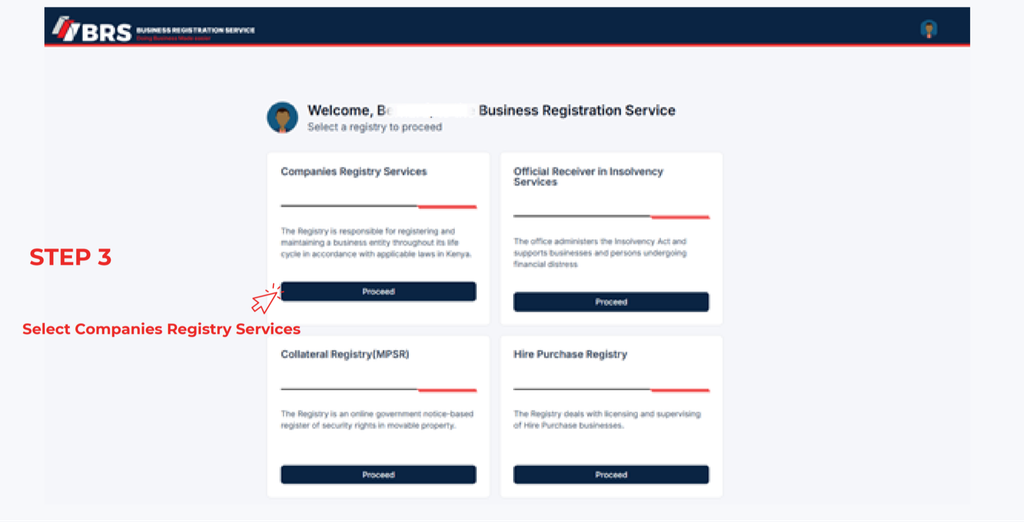
Step 3: Open Companies Registry Services
From the available services, select Companies Registry Services and click Proceed.
This section provides access to company registry services and the applications associated with your account.
After proceeding, locate the application management options to continue retrieving your company registration documents.
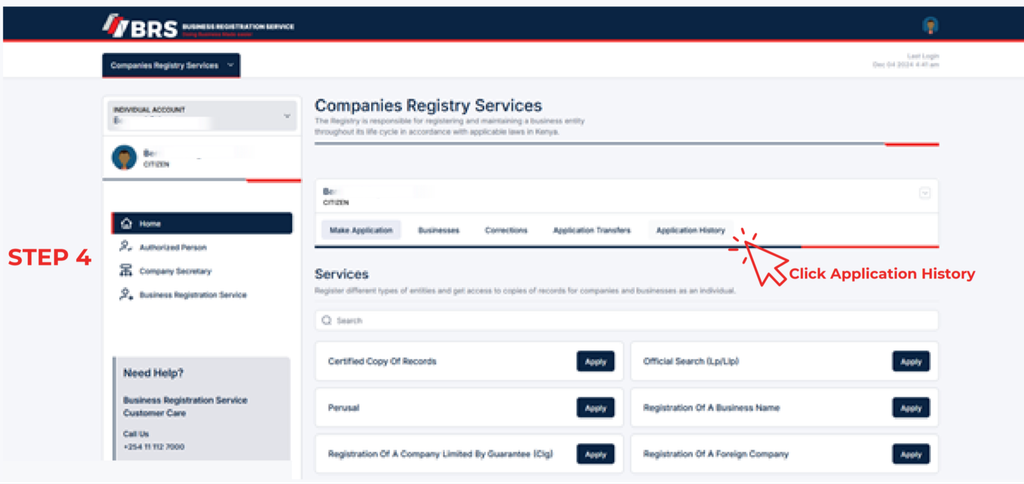
Step 4: Click Application History
On the Companies Registry Services interface, locate Application History, which the official guide identifies as being on the far right of the screen.
Click Application History to view the applications you have lodged through the BRS Version 2 portal.
This section allows you to review the status and progress of your applications and access available outputs.
If you have submitted multiple applications, identify the one associated with the business name, company registration, or other service for which you need documents.
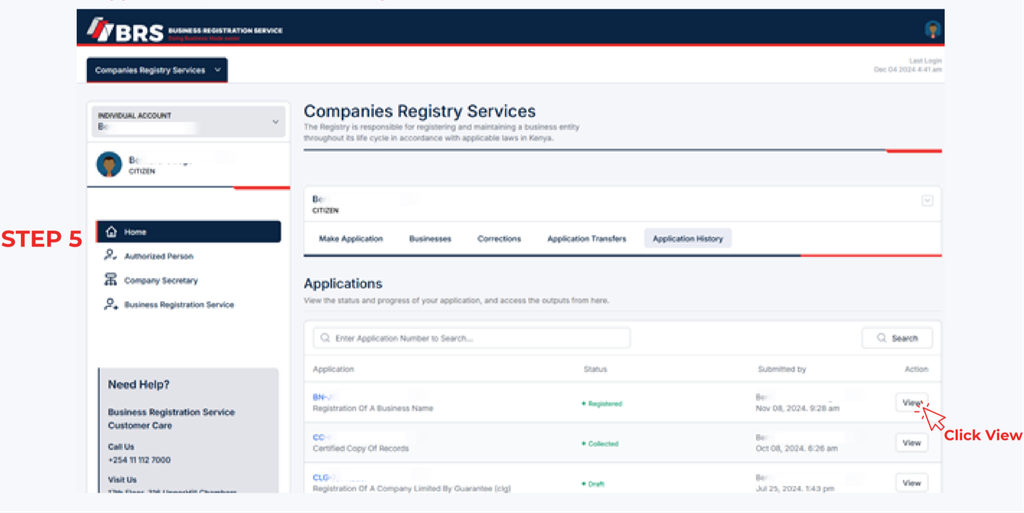
Step 5: Click View Beside the Relevant Application
Once Application History opens, review the listed applications and locate the relevant entry.
Click View beside the application you want to access.
A window will open displaying the records associated with that application. The available documents depend on the application and the outputs provided through the portal.
This step is important because you need to open the correct application before downloading its records.
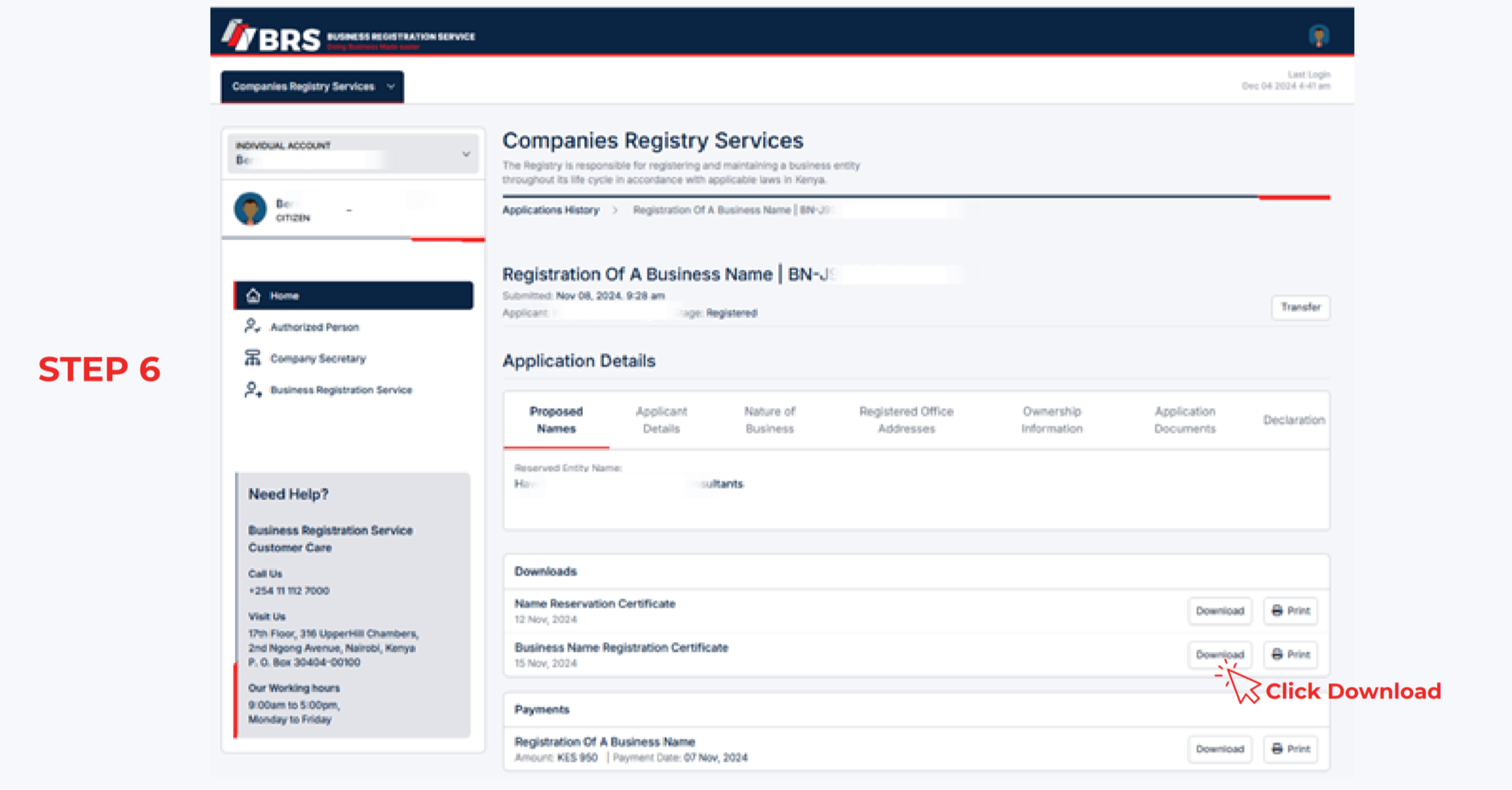
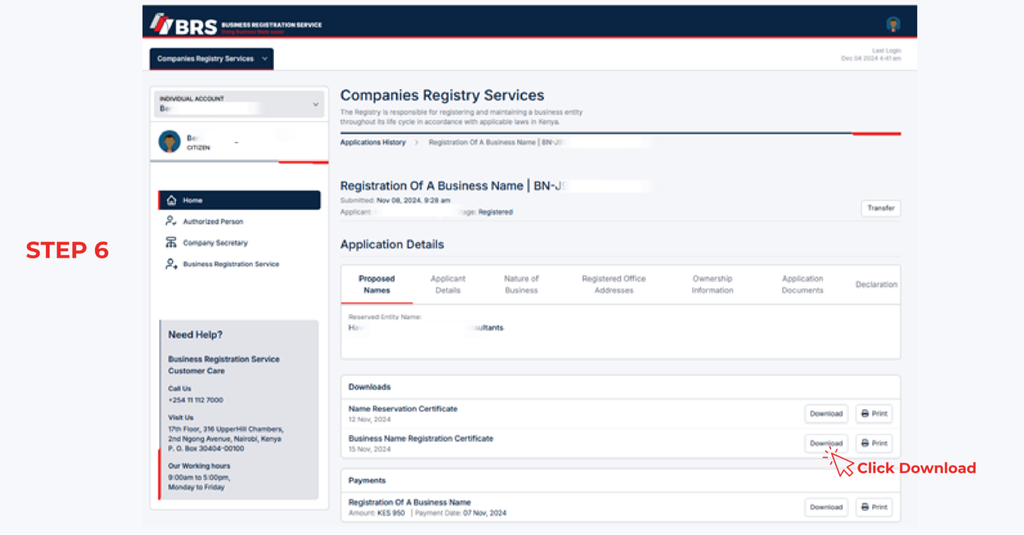
Step 6: Download and Print Your Documents
After clicking View, review the available records and locate the document you need.
Click Download to save the relevant file to your device. If you require a physical copy, open the downloaded document and use your device’s printing function.
Before closing the page, check that you have downloaded the correct document and that the file opens properly.
If several records are available, repeat the process for each document you need.
Which Documents Can You Download Through BRS eCitizen V2?
The records available through the portal depend on the service used, the application submitted, and the outputs issued by the Business Registration Service. The official list of entities registered by BRS can help you understand the types of business entities covered by the registry.
Documents you may be able to access include the following:
Business Registration Certificate
A business registration certificate serves as evidence of registration for a business name where such a certificate has been issued. Applicants can look for the relevant record under the application associated with their business name registration.
Company Incorporation Certificate
A company incorporation certificate is an important record confirming that a company has been incorporated. If the certificate is available in your application outputs, you can access it through Application History.
Business Name Registration Certificate
Business owners who registered a business name can check their application records for the corresponding business name registration certificate.
Other Company Registration Documents
The BRS portal may also provide other records or outputs associated with an application. These can include documents generated during the registration process or records made available through the relevant Companies Registry service.
Not every document will necessarily appear under every application. Check the records displayed when you select View.
How to Check Your BRS Application Status
The Application History section is useful not only for downloading documents but also for checking application progress.
After logging in and selecting Companies Registry Services, open Application History. The portal displays applications lodged through the relevant account, allowing you to review their status and progress.
If your business registration application is still being processed, the required certificate or other output may not yet be available for download.
In that situation, check the application status and return to the relevant record when the necessary output becomes available. If you need clarification about a pending application, contact the Business Registration Service through its official communication channels.
Troubleshooting BRS Certificate Downloads
Sometimes users may have difficulty finding or downloading company registration documents. The following checks can help resolve common problems.
Application Not Appearing in Application History
Confirm that you are logged in to the correct eCitizen account and have selected Personal Account, as specified in the official BRS guide.
If the application still does not appear, check whether it was submitted through another account or whether you have selected the appropriate registry service.
Certificate Not Available for Download
Review the application’s status and check whether the relevant output has been issued. An application that is still being processed may not yet have a downloadable certificate.
If the application appears complete but the document remains unavailable, contact BRS for assistance.
Downloaded Document Will Not Open
Try downloading the document again and opening it with a compatible PDF reader or browser. If you are using a mobile device, check that the file was saved successfully and that you can locate it in your downloads folder.
Need a Certified Copy of Company Records
Downloading an existing document is different from applying for a certified copy of records. If you need a certified copy for official, legal, banking, or compliance purposes, check the applicable Companies Registry service and its requirements.
For more detailed instructions, consult our guide on how to submit, download, and access certified copies of records in Kenya. You can also review the official BRS forms and documents to identify relevant forms for registry services.
Other BRS Services and Company Registration Guides
The Business Registration Service provides several services beyond downloading certificates. Depending on your needs, the following resources may help you complete related company registry procedures.
- Limited liability partnership registration: Learn about the process in our step-by-step guide to registering a limited liability partnership in Kenya.
- Changes to company particulars: If your registered business details need updating, consult our guide to changing particulars on BRS in Kenya.
- Consent on BRS: Understand the relevant procedure through our step-by-step guide to consent on BRS.
- Business name cessation or conversion: Review our guide to cessation and conversion of a business name in Kenya.
- Beneficial ownership information: Find out how to maintain your company’s records with our guide to updating beneficial ownership information on BRS.
- Collateral registry: For information about security interests in movable property, see our user manual and MPSR collateral registry guide for Kenya.
- Financial distress and insolvency: Learn about relevant procedures in our guides to debtors’ bankruptcy proceedings in Kenya, company liquidation in Kenya, and the company administration process in Kenya.
Before submitting a new application or requesting an additional service, review the applicable requirements and charges. The official BRS Companies Registry fee schedule provides information about relevant registry fees.
Contact the Business Registration Service
If you cannot access your application, locate the required document, or complete the BRS certificate download process, contact the Business Registration Service using the contact details provided in its official guide.
- Email: [email protected]
- Telephone: +254 11 112 7000
- Online portal: https://brsv2.ecitizen.go.ke/
For official announcements, additional service information, and current guidance, visit the Business Registration Service’s official website.
When requesting assistance, explain the problem clearly and provide the relevant application details requested by BRS. Avoid sharing your password or other sensitive login credentials.
Frequently Asked Questions
1. How do I download my company incorporation certificate from eCitizen?
Log in to the BRS eCitizen V2 portal, select Personal Account, open Companies Registry Services, and click Application History. Find the relevant application, click View, and download the available company incorporation certificate.
2. Why can’t I find my business registration certificate on BRS eCitizen V2?
The certificate may not be available because you are using the wrong eCitizen account, have selected the wrong registry service, or the application has not yet produced a downloadable output. Check your application history and status before contacting BRS for assistance.
3. Can I print company documents after downloading them from BRS?
Yes. According to the official BRS guide, users can download and print available records. After downloading the required document, open the file on your device and select the print option.