How to Submit, Download and Access a Certified Copy of Records on BRS eCitizen in Kenya: Step by Step Guide
Learn how to apply for, submit, download and access a certified copy of records through the BRS eCitizen portal, including application tracking, payment, corrections and password-protected company documents.
Obtaining a certified copy of company records in Kenya is an important process for businesses, directors, shareholders, and other applicants who need official company documents for legal, financial, or administrative purposes. The Business Registration Service (BRS) provides an online process through the eCitizen platform that allows applicants to request, pay for, and download certified company records.
This guide explains how to apply for a certified copy of records, track an application, complete payment, download certified documents, and access password-protected files using the BRS eCitizen portal.
What Is a Certified Copy of Records?
A certified copy of records is an official copy of company information or documents issued through the relevant company registry process. These records may be required when dealing with government agencies, financial institutions, legal representatives, or other organisations that request verified company documentation.
The Business Registration Service Kenya provides access to company registry services through its online platform, allowing applicants to request available records without necessarily visiting a physical office. For additional business registration information and guidance, applicants can consult the Business Registration Service website.
Depending on the company’s registry file and the documents available, applicants can request relevant company registration documents and other records maintained by the Registrar of Companies. You can also review the official list of entities registered by BRS to understand the types of entities covered by its registration services.
Why Do You Need Certified Company Documents?
Certified company documents may be required for several purposes, including:
- Opening or maintaining a business bank account.
- Completing due diligence checks.
- Supporting legal or regulatory procedures.
- Verifying company registration information.
- Submitting documents to government institutions.
- Confirming company details for commercial transactions.
Applicants should identify the specific documents required before starting the application to reduce the likelihood of corrections or delays. For more business-related guidance, explore the Start a Business in Africa blog.
Requirements for Applying Through the BRS eCitizen Portal
Before beginning the application, ensure you have access to the BRS Version 2 platform and the information needed to identify the company.
The main requirements include:
- Access to an eCitizen account.
- The company’s registered name or registration number.
- Details of the specific records being requested.
- The applicant’s personal information.
- A valid phone number for application notifications.
- A payment method accepted by the portal.
You should also have a clear understanding of the purpose of your request so that you can provide an appropriate explanation in the application comment box. Where necessary, consult the official BRS forms page for relevant registry forms and documentation.
Step-by-Step Guide to Apply for a Certified Copy of Records
Follow these steps to submit your application through the BRS online services platform. You can also refer to this detailed step-by-step guide to applying for and accessing certified copies of records in Kenya.
Step 1: Log In to the BRS eCitizen Portal
Visit the official BRS Version 2 portal:
Log in using your eCitizen account credentials. Ensure that you are accessing the official portal before entering personal information or making payments.
Step 2: Select Companies Registry Services
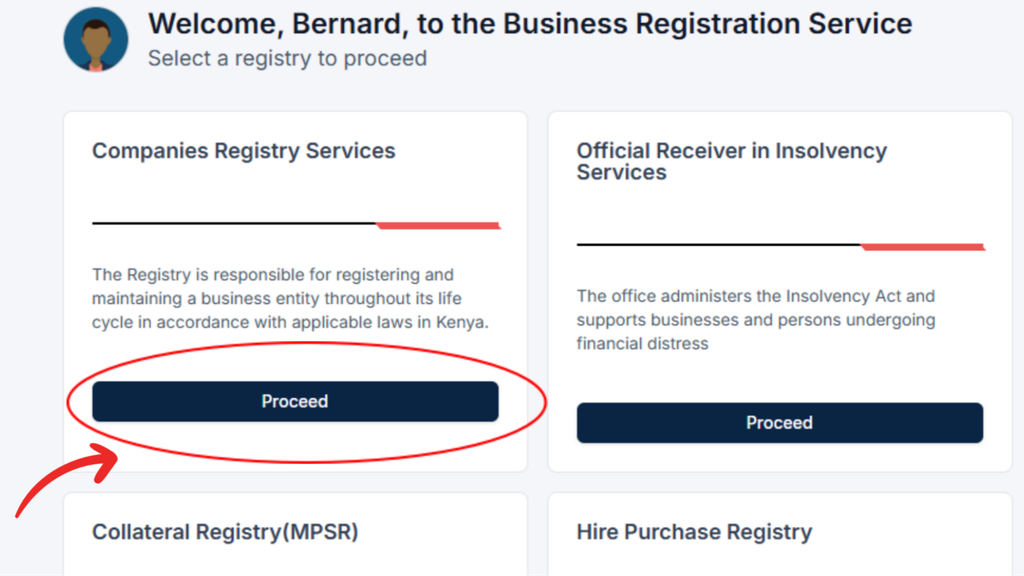
After logging in, locate and select Companies Registry Services.
This section provides access to services relating to company registration, registry records, and other company-related applications.
Step 3: Choose Certified Copy of Records
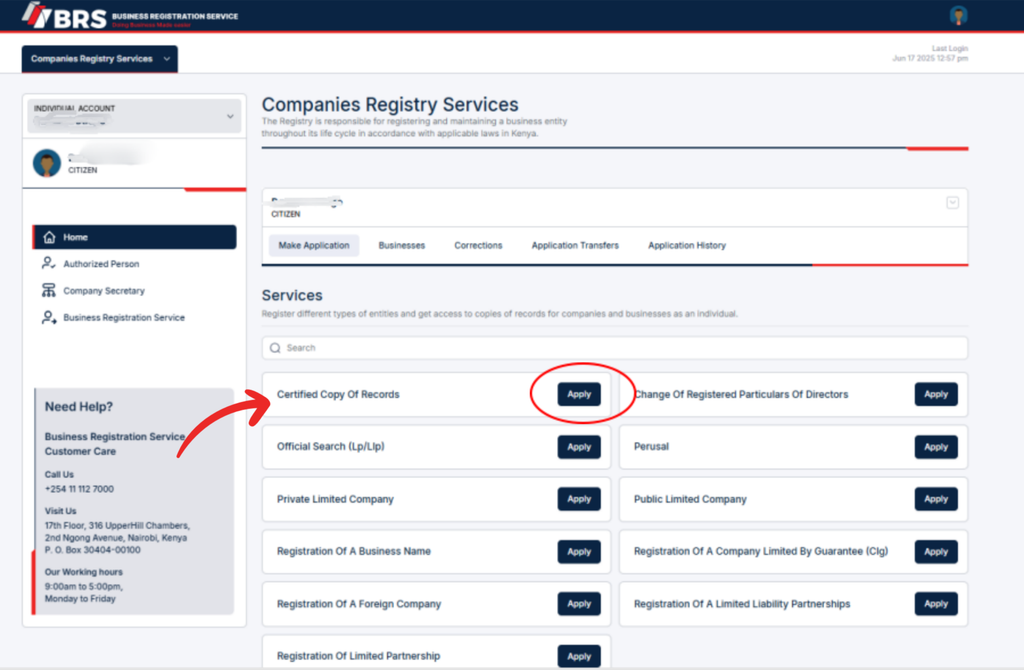
Under the available services, select Certified Copy of Records.
Click Apply to proceed to the application form.
Check that you have selected the correct service before continuing, particularly if you need a certified copy of a specific company document rather than another registry service.
Step 4: Search for the Company
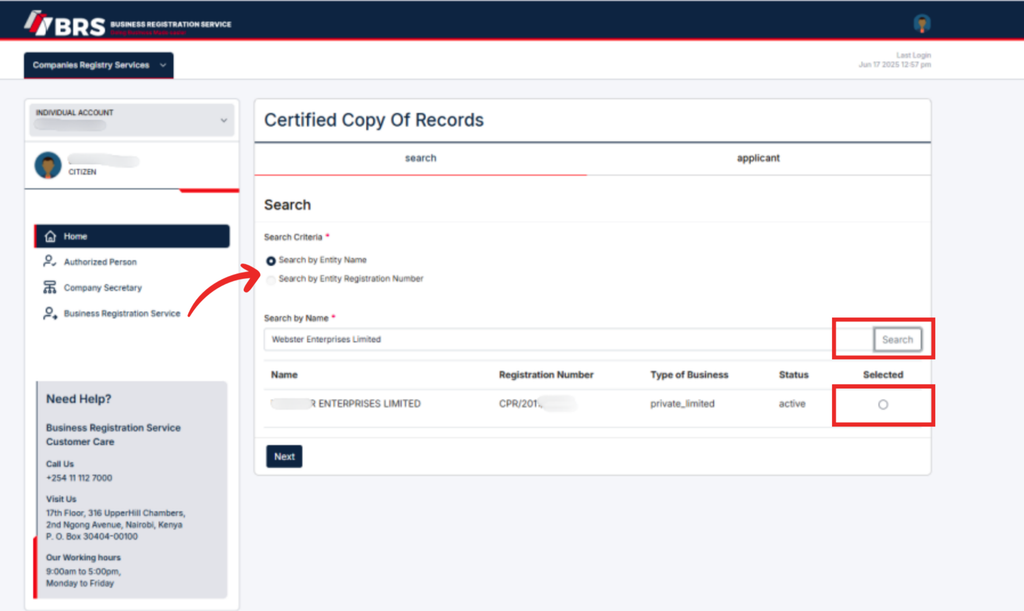
Choose the appropriate search criterion. You can search using either:
- The registered company name.
- The company’s registration number.
Enter the relevant information and perform the search.
When the correct company appears in the search results, select it to continue.
Using the correct registration number can help you identify the intended company, especially when multiple businesses have similar names.
Step 5: Select the Required Documents
After selecting the company, choose the documents you want to obtain.
Review the available options carefully and select only the records required for your purpose. Availability may depend on the company’s registry file.
Provide a brief explanation in the comment box describing the purpose or nature of your request.
Next, enter the applicant’s information and click Preview to review the application.
Check that the company details, selected documents, comments, and applicant information are accurate before proceeding.
Step 6: Submit the Application and Pay the Assessed Fee
After completing the application, submit it for assessment.
You will receive an SMS notification requesting you to log in and pay the assessed fee when payment is required.
To locate the application:
- Log in to the BRS eCitizen portal.
- Open Application History.
- Find the relevant application.
- Click Pay.
- Follow the payment instructions displayed on the portal.
The applicable fee should be confirmed through the official Companies Registry fee schedule. Do not assume that all document requests have the same charges.
Keep your payment receipt and application reference number for future tracking.
Step 7: Respond to Corrections if Necessary
The registry may issue a correction if the requested documents are unavailable or if further action is required.
Read the correction carefully and determine what needs to be changed before resubmitting the application.
Important: If the requested records cannot be located, resubmitting the same application without making the required amendments may result in rejection with a message stating that the file cannot be found.
Review the correction instructions and update the application appropriately rather than repeatedly submitting unchanged information.
Step 8: Track the Application Status
After submitting the application and completing the required payment, monitor its progress through the portal.
To check the status:
- Log in to your eCitizen account.
- Select Companies Registry Services.
- Open Application History.
- Locate the application using its reference number.
- Check the current status and any instructions provided.
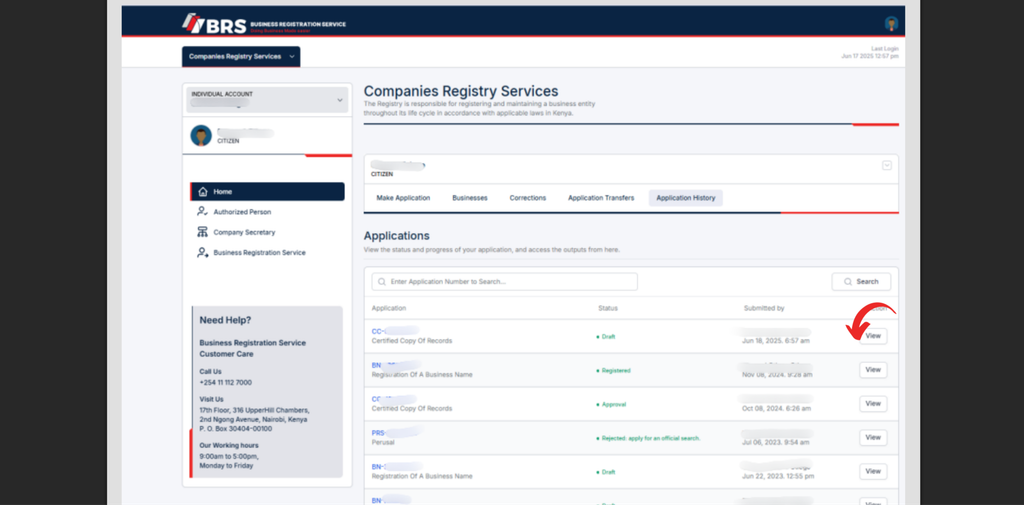
Processing times may vary depending on the application and the availability of the requested records. Allow time for the registry to assess and process your request.
How to Download a Certified Copy of Records
Once the application has been processed, you can retrieve the certified document through the application history section. For further instructions on downloading certificates and other records, see this guide to downloading company documents on BRS Version 2.
Step 1: Open Application History
Log in to the BRS eCitizen portal and select Companies Registry Services.
Navigate to Application History to view your submitted applications.
Step 2: Find the Application Reference Number
Locate the relevant application and confirm its reference number.
Select the corresponding View option to open the application details and access the processed documents.
Step 3: Download the Certified Document
When the document is available, click the Download button.
Save the file to a secure location on your device. Open it to confirm that the document is accessible and that it corresponds to the company and records you requested.
This process enables company records download directly through the online registry service, subject to the application’s successful processing.
Step 4: Download the Payment Receipt
Your payment receipt should also be available within the relevant application details.
Download and retain the receipt as evidence of payment. It may also contain information needed to access the protected certified document.
Keeping both the receipt and the certified document together makes it easier to retrieve the records when required.
How to Open a Password-Protected Certified Document
Some certified documents downloaded from the BRS platform are password-protected. This is particularly important when submitting documents to government institutions or financial institutions.
The downloaded file may open with a forwarding letter explaining how to access the certified document.
Step 1: Open the Downloaded File
Locate the downloaded document and open it using a compatible document reader.
If a forwarding letter appears, follow the instructions provided to access the certified records.
Step 2: Scan the QR Code
The forwarding letter may contain a password-protected QR code that must be scanned to access the certified document.
Use a compatible QR code scanner and follow the instructions displayed.
Step 3: Locate the Password on the Receipt
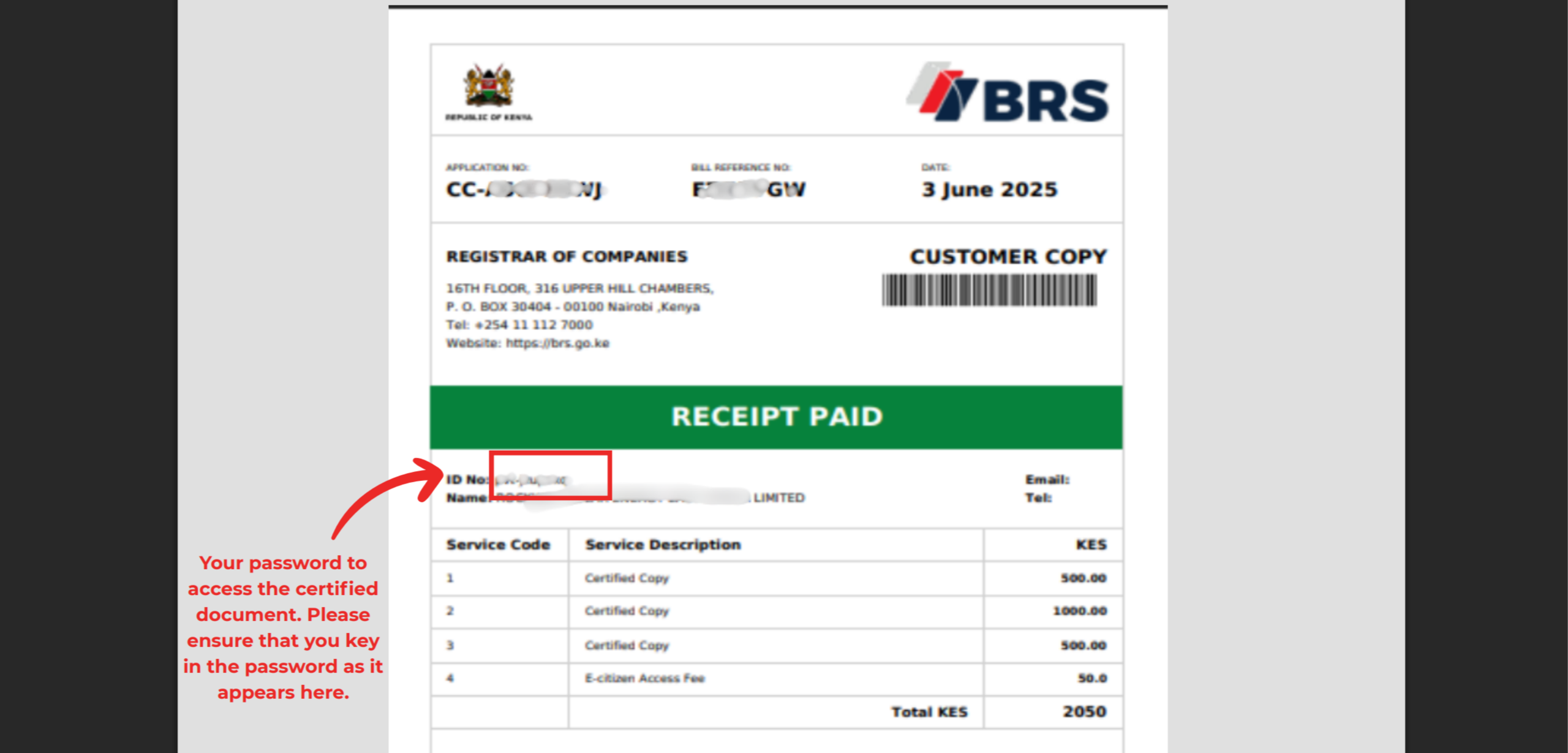
According to the BRS guide, the password required to access the certified document can be found by checking the ID No. field on the payment receipt.
Open the receipt associated with the application and locate the relevant information.
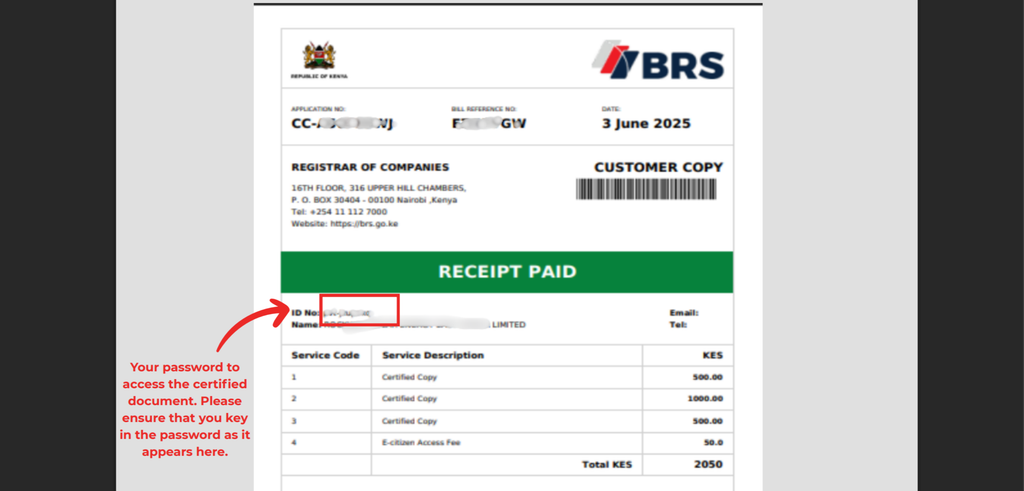
Step 4: Enter the Password Exactly as Displayed
Enter the password in the required field, matching the characters shown on the receipt.
Check for typing errors, including incorrect characters or accidental spaces. If access fails, verify the information against the receipt and follow the instructions provided by the portal.
Step 5: Share the Document Securely
If you are submitting the certified records to a bank, government agency, or another institution, ensure that the recipient receives the information necessary to access the protected document.
Because the password may be derived from information displayed on the receipt, share it securely and only with the intended recipient.
Do not assume that forwarding the protected document alone will allow the receiving institution to open it.
Common Problems When Accessing Certified Company Records
Applicants may encounter issues when searching for company records, completing payments, or opening downloaded documents.
The Company Does Not Appear in Search Results
Confirm that the company name or registration number has been entered correctly. Check for spelling errors and verify that you have selected the appropriate search criterion.
If the company still cannot be found, consult the registry’s official support channels.
The Application Is Returned for Corrections
Review the correction notice and make the requested amendments before resubmitting the application.
If the system indicates that the file cannot be found, do not repeatedly submit the same unchanged request. Follow the correction instructions or seek assistance from the registry.
The Payment Option Is Not Available
Check the application’s current status and confirm whether an assessment has been completed. Follow any payment instructions displayed in Application History.
If payment has already been made, retain the receipt and verify the transaction status before attempting another payment.
The Downloaded Document Will Not Open
Confirm that the file has downloaded completely and that you are using a compatible document reader.
If the file is password-protected, consult the forwarding letter and payment receipt for the required access instructions.
The Receiving Institution Cannot Access the Document
Confirm that the institution has received the correct file and the necessary password or access information. Verify that the password has been entered exactly as displayed on the receipt.
If the problem continues, consult the BRS support channels for assistance.
Other Useful BRS and Company Registration Services
The BRS eCitizen portal provides access to more than certified company records. Depending on your business needs, other registry services may help you maintain accurate company information and meet regulatory requirements.
- Change of company particulars: Learn about the step-by-step process for changing company particulars on BRS.
- Beneficial ownership information: Review the guide to updating beneficial ownership information on BRS.
- Company consent applications: Follow the guide to submitting consent on BRS.
- Limited liability partnerships: Understand the registration process for a limited liability partnership in Kenya.
- Business name changes: Explore the procedure for cessation or conversion of a business name in Kenya.
- Collateral registration: Consult the MPSR collateral registry user guide for information about the movable property security rights registry.
- Company administration: Read the guide to the company administration process in Kenya.
- Company liquidation: Learn about the step-by-step company liquidation process in Kenya.
- Debtors and bankruptcy: Review the overview of debtors’ bankruptcy proceedings in Kenya.
These resources address different business and regulatory procedures. Always confirm the applicable requirements with the relevant authority before submitting an application.
Best Practices for Successful Company Records Access
To make the application process more efficient, follow these practical recommendations:
- Verify company details: Use the correct registered name or registration number before selecting the company.
- Specify the documents required: Select the relevant records and explain the purpose of the request clearly.
- Review the application: Use the preview function to identify errors before submission.
- Monitor notifications: Check SMS messages and Application History for assessment, payment, and correction instructions.
- Retain the receipt: Keep the payment receipt because it provides proof of payment and may contain the document access password.
- Protect confidential information: Store downloaded documents securely and share passwords only with authorised recipients.
- Use official channels: Access the BRS portal directly and confirm fees and procedural requirements through official guidance.
These practices can help minimise avoidable errors and make it easier to obtain and submit certified company documents.
Frequently Asked Questions
1. How do I apply for a certified copy of records in Kenya?
Log in to the BRS eCitizen portal, select Companies Registry Services, choose Certified Copy of Records, and click Apply. Search for the company, select the required documents, enter the applicant’s details, review the application, and submit it. Pay the assessed fee when instructed and monitor Application History for updates.
2. Where can I download my certified company documents?
After the application has been processed, log in to the BRS eCitizen portal and open Companies Registry Services. Select Application History, locate the relevant application using its reference number, click View, and select Download when the certified document is available.
3. Where can I find the password for a certified document?
The BRS guide instructs applicants to check the ID No. field on the payment receipt for the password needed to access the certified document. Open the forwarding letter, follow the QR code instructions where applicable, and enter the password exactly as shown on the receipt.